πŸš€ Effortless Guide: How to Download Microsoft Teams Recordings on Laptop or PC Instantly!

Ever missed a crucial moment from a Microsoft Teams meeting? Don't worry! Downloading Microsoft Teams recordings on your laptop or PC is straightforward and saves you time. Whether you're on Windows, Mac, or using the web version, this guide walks you through every step with crystal-clear instructions. You'll have your files ready in minutes, keeping your productivity soaring. Let's dive in! 😊

Why Download Microsoft Teams Recordings?

Teams automatically saves recordings to OneDrive (for non-channel meetings) or SharePoint (for channel meetings). As the meeting organizer or a permitted user, you can grab them anytime. Perfect for reviews, sharing, or offline access. Ready? Follow these proven methods.

βœ… Prerequisites Before Downloading

  • Ensure you're signed into Microsoft Teams with the correct account (organizer or co-organizer has best access).
  • Update Teams to the latest version for smooth performance.
  • Check storage space on your laptop/PC.

Method 1: Download from Teams Desktop App (Easiest for Windows/Mac)

The desktop app offers the quickest way to download Microsoft Teams recordings. Here's how:

  1. πŸ‘† Open Microsoft Teams on your laptop/PC and navigate to the Teams Calendar or Chat tab.
  2. Locate the recorded meeting. Click to open its details.
  3. Hover over the recording thumbnail or click the More options (β‹―) button next to it.
  4. Select Download. The file (MP4 format) will save to your Downloads folder.
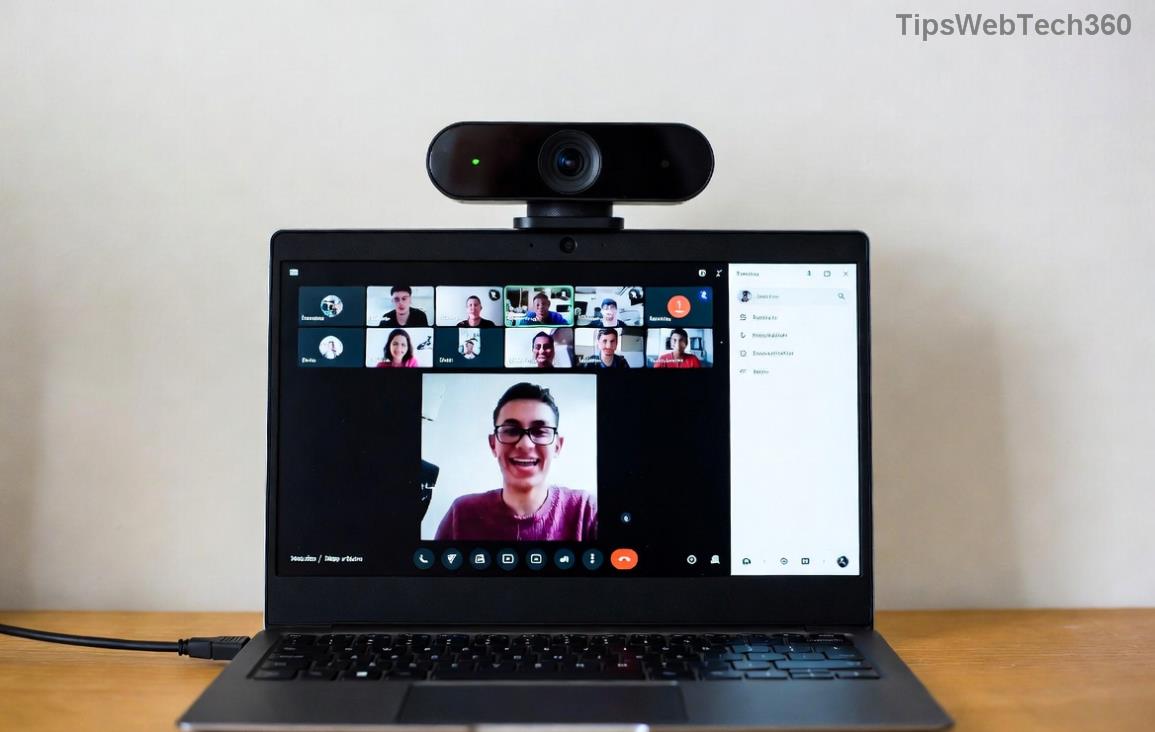
Microsoft Teams recording download interface on desktop app

Pro Tip: For large files, Teams transcribes and processes them firstβ€”wait for the "Ready" status! πŸŽ‰

Method 2: Download via OneDrive or SharePoint (For Full Control)

If the desktop option isn't available, head to cloud storage. This works seamlessly on any PC browser.

  1. πŸ” Go to OneDrive (onedrive.com) or SharePoint site linked to your Teams.
  2. Find the Recordings folder under Meetings or the specific team's site.
  3. Select the recording file (named like "MeetingName_YYYY-MM-DD_HH-MM-SS.mp4").
  4. Click Downloadβ€”it zips if multiple files (video + transcription).
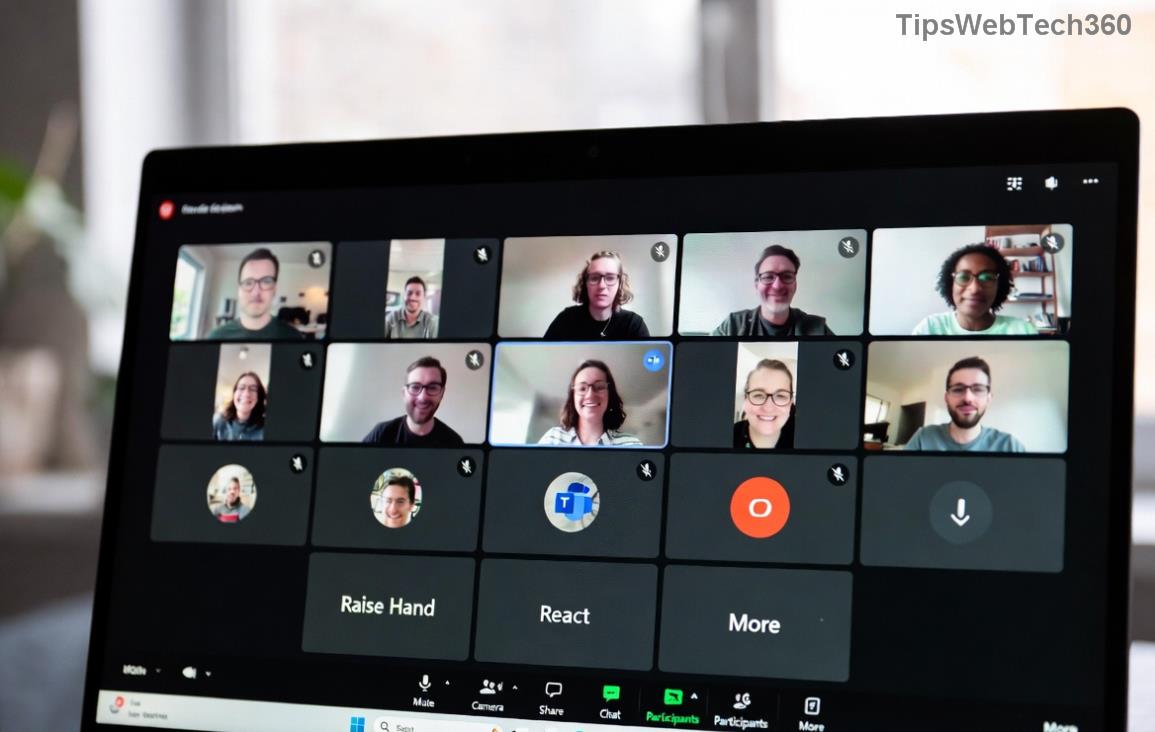
Downloading Teams recording from OneDrive folder on PC

This method shines for external users or when Teams is offline. Files are yours to edit or share forever! ✨

Method 3: Web Browser on Laptop/PC (No App Needed)

For quick access:

  1. Visit teams.microsoft.com and sign in.
  2. Follow the same steps as the desktop app under Calendar/Chat.
  3. Right-click the recording and select Save video as....

Troubleshooting Common Issues

Stuck? Use this handy table for fixes:

Issue Solution
No download option visible Verify you're the organizer. Check Teams admin settings for recording policies.
❌ File won't download Clear browser cache or try incognito mode. Ensure OneDrive sync is enabled.
Recording expired Admins set retentionβ€”request extension via Teams support.
Slow download on PC Pause other apps; use wired connection for stability.

For official help, see Microsoft Teams Recording Support.

⭐ Top Tips for Managing Microsoft Teams Recordings

  • Organize Files: Rename immediately (e.g., "ProjectUpdate_Jan.mp4") for easy search.
  • Share Securely: Upload to OneDrive and generate links with expiration.
  • Compress Large Files: Use tools like HandBrake for storage savings.
  • Enable Auto-Download: In Teams settings > Devices > turn on cloud recording sync.
  • Guest Access: External users request from hostβ€”recipients get links too!

FAQ: Your Microsoft Teams Recording Download Questions Answered

Q: Can Mac users download the same way?
A: Yes! Steps are identical on macOS via desktop app or browser. πŸ‘

Q: Where do recordings save by default on PC?
A: OneDrive > Recordings folder. Syncs automatically to your laptop.

Q: How long are Teams recordings available?
A: Up to 60 days by default, extendable by admins.

Q: Download multiple recordings at once?
A: Yes, in OneDrive/SharePoint, select all and download as ZIP.

Mastered it? Now you're set to capture every valuable insight. Bookmark this for future reference and share with your team! Got issues? Drop a comment belowβ€”we're here to help. πŸš€

Leave a Comment

πŸš€ Fix Microsoft Teams Proxy Error FAST: Ultimate Troubleshooting & Settings Guide

πŸš€ Fix Microsoft Teams Proxy Error FAST: Ultimate Troubleshooting & Settings Guide

Stuck with Microsoft Teams Proxy Error? Follow this step-by-step troubleshooting guide to fix proxy settings, clear errors, and get Teams running smoothly in minutes. Proven fixes for latest versions.

πŸš€ Fix Microsoft Teams OneDrive Error File Sync Instantly: Proven 2026 Solutions

πŸš€ Fix Microsoft Teams OneDrive Error File Sync Instantly: Proven 2026 Solutions

Struggling with Microsoft Teams OneDrive Error during file sync? Discover step-by-step fixes for seamless collaboration. Solve OneDrive sync issues in Teams today with our ultimate guide.

🚨 Microsoft Teams Welcome Error Startup Loop FIXED: 7 Proven Steps to Escape the Endless Cycle!

🚨 Microsoft Teams Welcome Error Startup Loop FIXED: 7 Proven Steps to Escape the Endless Cycle!

Struggling with the frustrating Microsoft Teams "Welcome Error" startup loop? Discover step-by-step fixes that work in the latest updates. Clear cache, reset, reinstall & more – get back to seamless collaboration fast!

πŸš€ Fix Microsoft Teams Error V in Latest Version: Proven Solutions That Work Instantly!

πŸš€ Fix Microsoft Teams Error V in Latest Version: Proven Solutions That Work Instantly!

Tired of Microsoft Teams crashing with "Error V"? This ultimate guide reveals step-by-step fixes for Solving Microsoft Teams "Error V" Version issues in the latest updates. Quick, easy, and effective – get back to seamless collaboration!

πŸš€ Instant Fix: Banish Microsoft Teams Games Plugin Error Forever!

πŸš€ Instant Fix: Banish Microsoft Teams Games Plugin Error Forever!

Tired of the frustrating Microsoft Teams "Games" Plugin Error blocking your fun? Follow our proven, step-by-step guide to fix it quicklyβ€”no tech expertise needed. Get back to gaming in Teams today!

πŸš€ Ultimate Guide: How to Remove & Switch Microsoft Teams Accounts on Windows 11 in Minutes

πŸš€ Ultimate Guide: How to Remove & Switch Microsoft Teams Accounts on Windows 11 in Minutes

Master how to remove and change a Microsoft Teams account on Windows 11 with this foolproof, step-by-step guide. Fix account issues fast, switch seamlessly, and boost your productivity today!

🚨 Microsoft Teams Down 2026? 7 Proven Fixes to Restore Service Instantly!

🚨 Microsoft Teams Down 2026? 7 Proven Fixes to Restore Service Instantly!

Is Microsoft Teams showing "Down" server status in 2026? Discover step-by-step fixes for Microsoft Teams outages, from quick restarts to advanced troubleshooting. Get back online fast with our ultimate guide!

πŸš€ Fix Microsoft Teams Shortcut Error Not Opening: Proven Solutions for Instant Access!

πŸš€ Fix Microsoft Teams Shortcut Error Not Opening: Proven Solutions for Instant Access!

Struggling with Microsoft Teams "Shortcut Error" not opening? Discover step-by-step fixes to solve Microsoft Teams shortcut error, clear cache, reset app, and get back to seamless collaboration in minutes. Updated with the latest methods.

πŸ”§ Instant Fix: How to Fix Microsoft Teams Error Code 500 in Under 5 Minutes!

πŸ”§ Instant Fix: How to Fix Microsoft Teams Error Code 500 in Under 5 Minutes!

Tired of Microsoft Teams Error Code 500 crashing your meetings? Follow our step-by-step guide to fix Teams error 500 quickly with proven methods like cache clearing, updates, and network tweaks. Get back online now!

πŸš€ Ultimate Fix: How to Fix Microsoft Teams Call Failed Error in 2026 – Proven Steps That Work Instantly!

πŸš€ Ultimate Fix: How to Fix Microsoft Teams Call Failed Error in 2026 – Proven Steps That Work Instantly!

Struggling with Microsoft Teams "Call Failed" error in 2026? Discover proven, step-by-step fixes to get your calls working smoothly. Quick solutions for network issues, app glitches, and more – no tech skills needed!