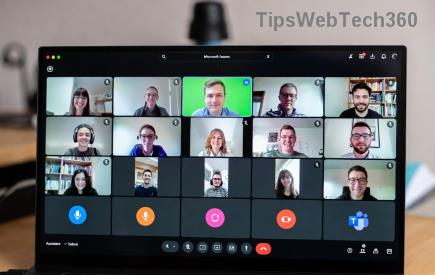
Imagine this: You're in a crucial Microsoft Teams meeting, ready to share files, but bam! A stubborn OneDrive Error blocks your file sync. Frustrating, right? 😩 Don't worry—this comprehensive guide delivers solving Microsoft Teams "OneDrive Error" File Sync solutions that work like magic. We've tested the latest fixes to get your files syncing smoothly again. Let's dive in and reclaim your productivity! ⭐
What Causes the Microsoft Teams OneDrive Error in File Sync?
The OneDrive Error in Microsoft Teams often pops up when files in channels or chats fail to sync. Common culprits include:
- Corrupted OneDrive cache.
- Network glitches or firewall blocks.
- Outdated Teams or OneDrive apps.
- Permission issues in shared folders.
- Storage limits hit on your OneDrive account.
Recognizing these helps you target the fix faster. Ready to troubleshoot? Follow these steps in order for the best results. 👍

Step-by-Step Fixes: Solving Microsoft Teams "OneDrive Error" File Sync
Start with the simplest solutions and escalate if needed. Most users resolve it in under 10 minutes!
1️⃣ Quick Restart and Sign-Out Fix
- Close Microsoft Teams completely (use Task Manager to end all processes).
- Sign out of OneDrive via system tray > right-click > Settings > Account > Unlink this PC.
- Restart your computer.
- Sign back in to OneDrive and Teams.
This clears temporary glitches. Test file sync in a Teams channel now!
2️⃣ Reset OneDrive Sync (Most Effective Fix)
Resetting OneDrive without losing files is a game-changer for Teams file sync issues.
| Platform | Reset Command |
|---|
| Windows | %localappdata%\Microsoft\OneDrive\onedrive.exe /reset |
| Mac | /Applications/OneDrive.app/Contents/MacOS/OneDrive /reset |
Run in Command Prompt/Terminal, wait 2 minutes, then relaunch. Your Teams files will resync automatically. 🎉

3️⃣ Update Apps and Check Permissions
- Update Microsoft Teams and OneDrive to the latest versions via their settings.
- In Teams, go to Files > Open in SharePoint > Check permissions.
- Ensure your account has "Edit" access to the folder.
Pro tip: Clear Teams cache too—delete contents of %appdata%\Microsoft\Teams.
4️⃣ Network and Storage Troubleshooting
Disable VPN/firewall temporarily to test. Check OneDrive storage at onedrive.live.com. If full, delete old files or upgrade storage.

Advanced Troubleshooting for Persistent Teams OneDrive Sync Errors
If basics don't cut it:
- Selective Sync: In OneDrive settings, choose folders to sync (right-click tray icon > Settings > Account > Choose folders). Prioritize Teams folders.
- Run as Admin: Launch Teams and OneDrive as administrator.
- Registry Fix (Windows Only): Backup registry first, then disable Files On-Demand via regedit (search official guide).
- Contact support: Use Teams Help > Give feedback, or visit Microsoft Support for logs.
Prevention Tips: Keep OneDrive Error File Sync Away Forever
- Regularly update Microsoft Teams and OneDrive.
- Monitor storage weekly. 🛡️
- Use Teams web version as backup during sync hiccups.
- Enable notifications for sync status in OneDrive settings.
Bonus: For large teams, consider SharePoint admin tools for bulk permissions. This keeps collaboration flawless!
Final Thoughts: Sync Smarter with Microsoft Teams
Congrats—you're now armed to conquer the Microsoft Teams OneDrive Error! Apply these fixes, and watch your files flow seamlessly. If issues persist, drop a comment below—we're here to help. 🚀 Share this guide to save your team's day! 👏
Back to work, productively. Your Teams awaits! 😊