๐Ÿš€ Ultimate Guide: Test Microsoft Teams Audio & Camera in Seconds Before Any Call

Ever jumped into a Microsoft Teams meeting only to face echoey audio or a frozen camera? ๐Ÿ˜ฉ It's frustrating and unprofessional. But here's the good news: testing your setup takes just minutes and guarantees crystal-clear calls. This guide walks you through how to test your Microsoft Teams audio and camera before a call using built-in toolsโ€”no extra apps needed. Let's dive in and make your next meeting a success! โœ…

Why Bother Testing Microsoft Teams Audio and Camera Before a Call?

Quick tests prevent mishaps like muted mics or upside-down video. In the latest Teams updates, features are more intuitive, helping remote workers shine. Save time, impress colleagues, and focus on what matters. Ready? Start with audioโ€”it's the heart of every conversation.

๐Ÿ”Š Step-by-Step: How to Test Microsoft Teams Audio Before Joining

Teams has a seamless audio test feature right in the app. Follow these steps for instant feedback:

  1. Open Teams and click your profile picture > Settings (gear icon) > Devices.
  2. Under Speaker, play the sample audio. Hear it clearly? ๐ŸŽง Great! No sound? Switch speakers.
  3. Select your Microphone, then click Make a test call. Teams records 10 secondsโ€”listen back for clarity and volume.
  4. Check Microphone testing bar: Green means perfect; adjust if yellow/red.
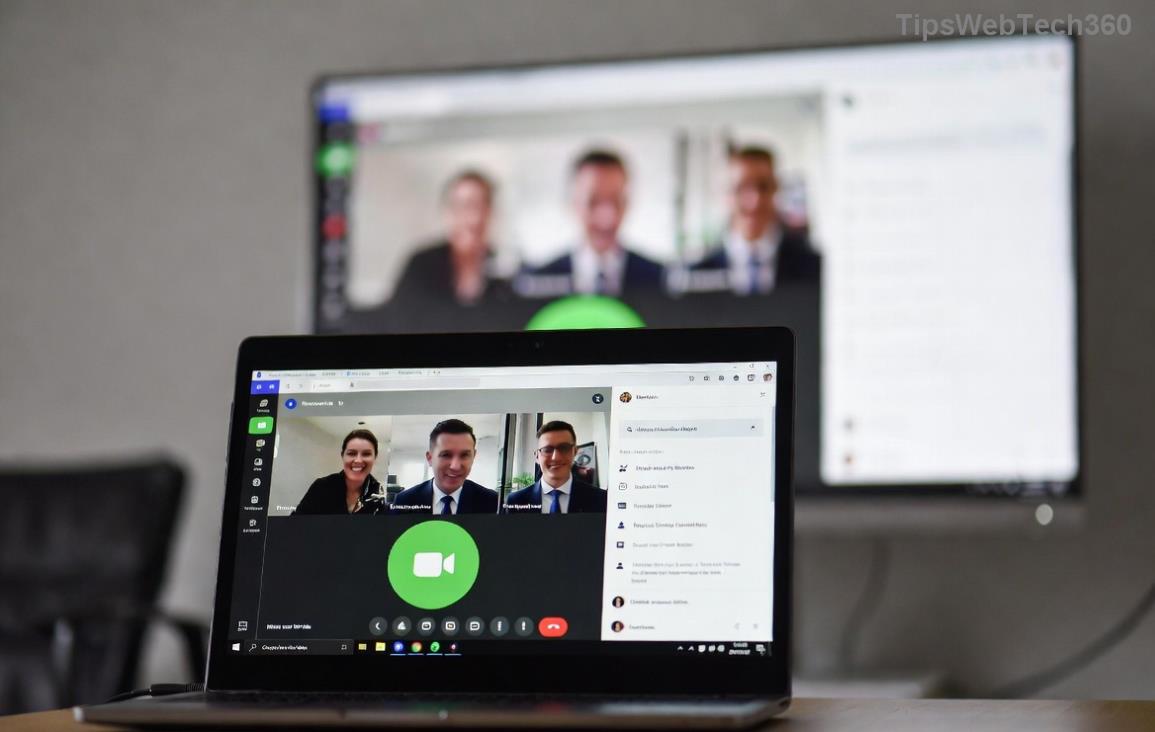
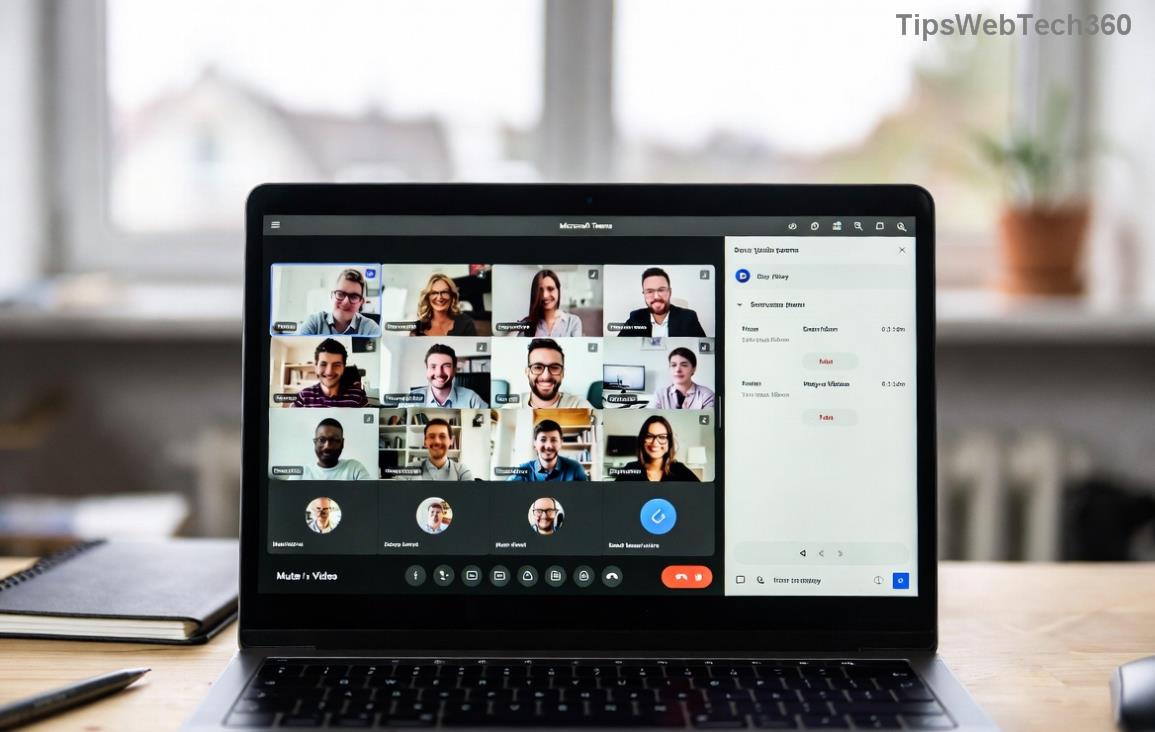
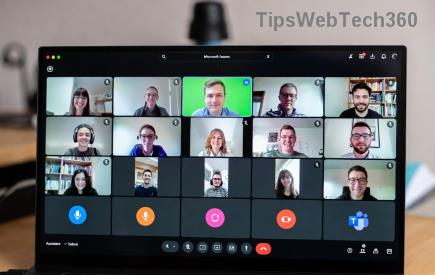
Microsoft Teams audio test interface showing microphone and speaker selection

Pro tip: Speak naturally during the test. Background noise? Enable noise suppression in Devices settings. You're now audio-ready! ๐ŸŽ‰

๐Ÿ“น Easy Microsoft Teams Camera Test: See Yourself Before They Do

Visuals matter. Test your camera to avoid dark, blurry feeds:

  1. In Teams Settings > Devices, pick your Camera from the dropdown.
  2. Preview window shows live feed. ๐Ÿ” Adjust lighting, angle, and background.
  3. Click Make a test call againโ€”review video alongside audio.
  4. Enable Camera toggle during preview for real-time tweaks.

For best results, face a window for natural light and use Teams effects like blur background if needed. Smooth sailing ahead!
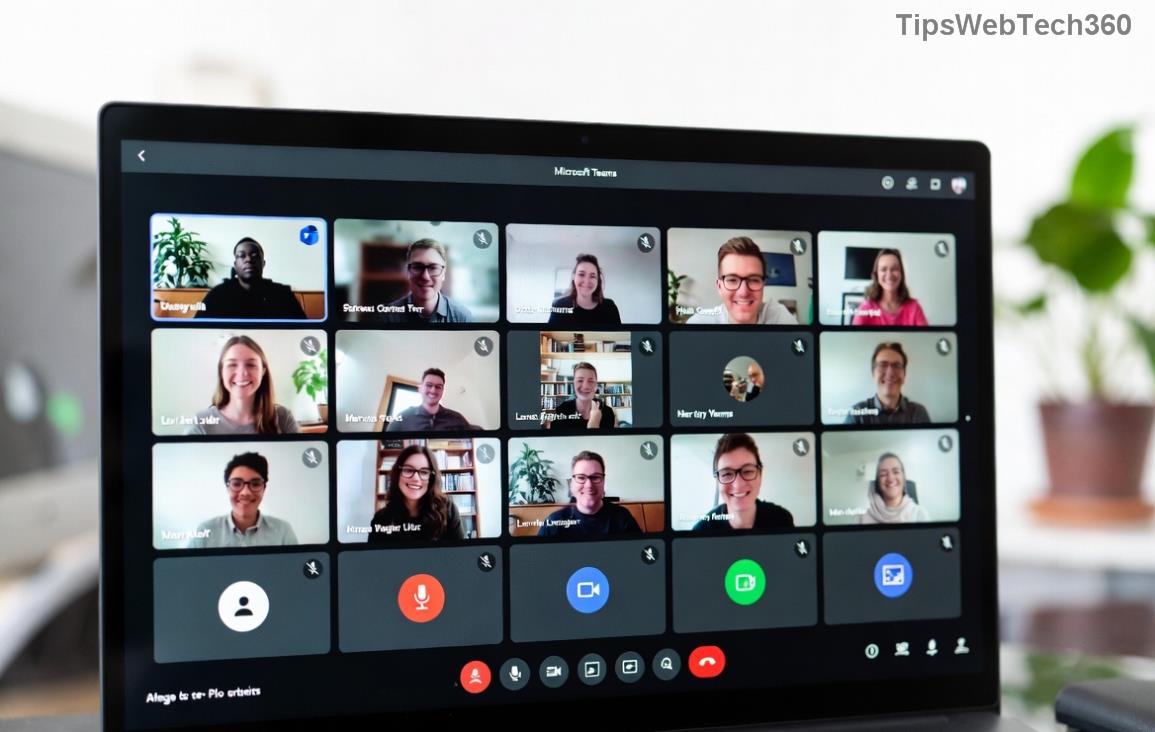
Teams camera preview and device settings screen

โญ Use the Built-in Teams Test Call Feature for Full Dry Run

The star of how to test your Microsoft Teams audio and camera before a call: Test Call bot!

  • Search "Test call (bot)" in Teams chat.
  • Start chat > Click phone icon or type "Call me."
  • It ringsโ€”answer, speak, and hang up. Get instant playback review! ๐Ÿ“ž

This simulates a real call, testing end-to-end. Available on desktop, web, and mobile. Genius for group prep too.

Quick Troubleshooting Table for Common Teams Audio & Camera Issues

Glitches happen. Fix them fast with this handy table:

Issue Quick Fix
No audio ๐Ÿ”‡ Check system volume, allow Teams mic access in OS privacy settings.
Camera not detected ๐Ÿ“ด Update drivers, close other apps using camera (e.g., Zoom).
Echo or feedback Use headphones, enable noise suppression.
Laggy video Lower resolution in Devices > Camera settings.
Teams test call bot interface for audio and video testing

For deeper fixes, visit Microsoft's official support: Teams Audio/Video Settings.

๐Ÿ’ก Top Tips for Flawless Microsoft Teams Calls Every Time

  • Update Teams app regularly for latest audio test enhancements.
  • Test on the device you'll useโ€”mobile differs from desktop.
  • Pre-meeting ritual: 2-min test call. Habit forms confidence! โœจ
  • Share your screen? Test that too in Devices settings.

Bonus: Enable "Always show preview" in meetings for last-second checks.

Wrap-Up: Call-Ready in Under 5 Minutes

Now you know exactly how to test your Microsoft Teams audio and camera before a call. No more "Can you hear me?" loopsโ€”just productive, professional vibes. ๐Ÿ‘ Try it before your next meeting and feel the difference. Got a tip? Drop it in comments belowโ€”we're all in this together!

Stay tuned for more Teams hacks to level up your remote game. ๐Ÿš€

Leave a Comment

๐Ÿš€ Fix Microsoft Teams Error Q QSP Instantly: Proven 2026 Steps That Work!

๐Ÿš€ Fix Microsoft Teams Error Q QSP Instantly: Proven 2026 Steps That Work!

Stuck with Microsoft Teams "Error Q" QSP? Discover simple, step-by-step fixes to resolve this frustrating issue quickly. Clear cache, update, and more for seamless teamwork. Works on Windows, Mac & web. Get back online now!

๐Ÿš€ Ultimate Fix: How to Fix Microsoft Teams Error W Web in Under 5 Minutes!

๐Ÿš€ Ultimate Fix: How to Fix Microsoft Teams Error W Web in Under 5 Minutes!

Tired of Microsoft Teams "Error W" crashing your web sessions? Follow our proven, step-by-step guide to fix it fastโ€”clear cache, troubleshoot browsers, and restore seamless collaboration. Latest solutions inside!

๐Ÿš€ Fix Microsoft Teams Proxy Error FAST: Ultimate Troubleshooting & Settings Guide

๐Ÿš€ Fix Microsoft Teams Proxy Error FAST: Ultimate Troubleshooting & Settings Guide

Stuck with Microsoft Teams Proxy Error? Follow this step-by-step troubleshooting guide to fix proxy settings, clear errors, and get Teams running smoothly in minutes. Proven fixes for latest versions.

๐Ÿš€ Fix Microsoft Teams OneDrive Error File Sync Instantly: Proven 2026 Solutions

๐Ÿš€ Fix Microsoft Teams OneDrive Error File Sync Instantly: Proven 2026 Solutions

Struggling with Microsoft Teams OneDrive Error during file sync? Discover step-by-step fixes for seamless collaboration. Solve OneDrive sync issues in Teams today with our ultimate guide.

๐Ÿšจ Microsoft Teams Welcome Error Startup Loop FIXED: 7 Proven Steps to Escape the Endless Cycle!

๐Ÿšจ Microsoft Teams Welcome Error Startup Loop FIXED: 7 Proven Steps to Escape the Endless Cycle!

Struggling with the frustrating Microsoft Teams "Welcome Error" startup loop? Discover step-by-step fixes that work in the latest updates. Clear cache, reset, reinstall & more โ€“ get back to seamless collaboration fast!

๐Ÿš€ Fix Microsoft Teams Error V in Latest Version: Proven Solutions That Work Instantly!

๐Ÿš€ Fix Microsoft Teams Error V in Latest Version: Proven Solutions That Work Instantly!

Tired of Microsoft Teams crashing with "Error V"? This ultimate guide reveals step-by-step fixes for Solving Microsoft Teams "Error V" Version issues in the latest updates. Quick, easy, and effective โ€“ get back to seamless collaboration!

๐Ÿš€ Instant Fix: Banish Microsoft Teams Games Plugin Error Forever!

๐Ÿš€ Instant Fix: Banish Microsoft Teams Games Plugin Error Forever!

Tired of the frustrating Microsoft Teams "Games" Plugin Error blocking your fun? Follow our proven, step-by-step guide to fix it quicklyโ€”no tech expertise needed. Get back to gaming in Teams today!

๐Ÿš€ Ultimate Guide: How to Remove & Switch Microsoft Teams Accounts on Windows 11 in Minutes

๐Ÿš€ Ultimate Guide: How to Remove & Switch Microsoft Teams Accounts on Windows 11 in Minutes

Master how to remove and change a Microsoft Teams account on Windows 11 with this foolproof, step-by-step guide. Fix account issues fast, switch seamlessly, and boost your productivity today!

๐Ÿšจ Microsoft Teams Down 2026? 7 Proven Fixes to Restore Service Instantly!

๐Ÿšจ Microsoft Teams Down 2026? 7 Proven Fixes to Restore Service Instantly!

Is Microsoft Teams showing "Down" server status in 2026? Discover step-by-step fixes for Microsoft Teams outages, from quick restarts to advanced troubleshooting. Get back online fast with our ultimate guide!

๐Ÿš€ Fix Microsoft Teams Shortcut Error Not Opening: Proven Solutions for Instant Access!

๐Ÿš€ Fix Microsoft Teams Shortcut Error Not Opening: Proven Solutions for Instant Access!

Struggling with Microsoft Teams "Shortcut Error" not opening? Discover step-by-step fixes to solve Microsoft Teams shortcut error, clear cache, reset app, and get back to seamless collaboration in minutes. Updated with the latest methods.