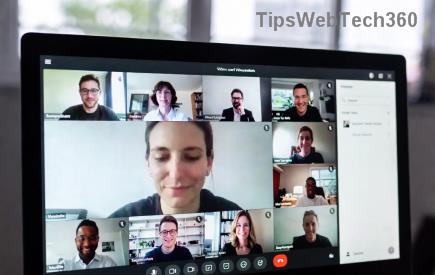
Fix Microsoft Teams Error 1200 FAST: Ultimate Step-by-Step Recovery Guide 2026

🚨 Encountering Microsoft Teams Error 1200? This frustrating issue often blocks sign-ins, meetings, or chats due to network glitches, proxy conflicts, or corrupted cache. Don't worryβ€”our solving Microsoft Teams Error 1200 guide delivers quick, reliable fixes to restore your workflow in minutes. Follow these proven steps, and you'll be back online without missing a beat! πŸ’ͺ

Screenshot of Microsoft Teams Error 1200 connection failure

What Causes Microsoft Teams Error 1200?

Microsoft Teams Error 1200 typically signals a "connection to service lost" problem. Common culprits include:

  • πŸ”§ Proxy or VPN interference
  • ❌ Firewall/antivirus blocks
  • πŸ“± Corrupted app cache or outdated version
  • 🌐 Unstable internet or DNS issues

Recent updates have refined Teams' networking, but these triggers persist. Let's dive into solving Microsoft Teams Error 1200 with targeted recovery steps.

Quick Fixes: Resolve Teams Error 1200 in Under 5 Minutes

Start here for 80% of cases. These no-tech-skills-needed steps often do the trick! βœ…

  1. Restart Teams and Your Device
    Close Teams completely (use Task Manager on Windows: Ctrl+Shift+Esc > End Task). Restart your computer. Relaunch Teams. Why? Clears temporary glitches.
  2. Check Internet Connection
    Test on another site or device. Switch Wi-Fi/mobile data. Run Speedtest.netβ€”aim for 5Mbps+ upload/download.
  3. Disable VPN/Proxy Temporarily
    Go to Settings > Network & Internet > VPN (Windows) or System Preferences > Network (Mac). Turn off and retry Teams.

If these don't work, proceed to advanced recovery. You're almost there! ⏳

Step-by-Step Advanced Recovery for Solving Microsoft Teams Error 1200

Time for deeper fixes. Follow sequentially for best results.

Step 1: Clear Teams Cache (Most Effective Fix)

Corrupted cache causes 50% of Teams Error 1200 issues. Here's how:

PlatformSteps
Windows 1. Quit Teams.
2. Press Win+R, type %appdata%\Microsoft\Teams, hit Enter.
3. Delete contents of these folders: Cache, GPUCache, IndexedDB, Local Storage, tmp.
4. Restart Teams.
Mac 1. Quit Teams.
2. Open Finder > Go > ~/Library/Application Support/Microsoft/Teams.
3. Delete: Cache, Code Cache, GPUCache, etc.
4. Relaunch.
Web VersionClear browser cache via Settings > Privacy > Clear browsing data (select Cached images/files).
Clearing Microsoft Teams cache folders to fix Error 1200

Step 2: Update or Repair Teams

Outdated apps trigger errors. Open Teams > Profile icon > Check for updates. No luck? Repair via:

Step 3: Tweak Firewall and Antivirus

Add Teams exceptions:

  • Windows Defender Firewall: Allow app through firewall > Add Teams.exe.
  • Antivirus: Temporarily disable or whitelist Teams. Popular ones like Norton/McAfee often flag it.

Pro tip: Run Teams as Administrator (right-click icon > Run as admin). πŸ”’

Step 4: Reset Network Settings

For stubborn proxy/DNS woes:

  1. Command Prompt (Admin): netsh int ip reset & ipconfig /flushdns.
  2. Restart PC.
Network reset command prompt for Teams Error 1200 fix

Step 5: Reinstall Teams (Last Resort)

Uninstall via Settings > Apps. Download fresh from Microsoft. This wipes all local issues. πŸŽ‰

Prevention Tips to Avoid Future Teams Error 1200

Stay error-free:

  • ⭐ Update Teams weekly.
  • βœ… Use wired connection for meetings.
  • πŸ›‘οΈ Whitelist Teams in security software.
  • πŸ“‚ Clear cache monthly.

For enterprise users, check IT policies via Microsoft Teams Support.

FAQ: Common Microsoft Teams Error 1200 Questions

Q: Does Error 1200 affect mobile?
A: Yes, but try app update or reinstall first.

Q: Error persists after all steps?
A: Contact Microsoft Support or check status at Teams Status.

Fixed your Microsoft Teams Error 1200? Share in comments! πŸ‘‡ Your seamless collaboration awaits. πŸš€

Leave a Comment

πŸš€ Fix Microsoft Teams Error Q QSP Instantly: Proven 2026 Steps That Work!

πŸš€ Fix Microsoft Teams Error Q QSP Instantly: Proven 2026 Steps That Work!

Stuck with Microsoft Teams "Error Q" QSP? Discover simple, step-by-step fixes to resolve this frustrating issue quickly. Clear cache, update, and more for seamless teamwork. Works on Windows, Mac & web. Get back online now!

πŸš€ Ultimate Fix: How to Fix Microsoft Teams Error W Web in Under 5 Minutes!

πŸš€ Ultimate Fix: How to Fix Microsoft Teams Error W Web in Under 5 Minutes!

Tired of Microsoft Teams "Error W" crashing your web sessions? Follow our proven, step-by-step guide to fix it fastβ€”clear cache, troubleshoot browsers, and restore seamless collaboration. Latest solutions inside!

πŸš€ Fix Microsoft Teams Proxy Error FAST: Ultimate Troubleshooting & Settings Guide

πŸš€ Fix Microsoft Teams Proxy Error FAST: Ultimate Troubleshooting & Settings Guide

Stuck with Microsoft Teams Proxy Error? Follow this step-by-step troubleshooting guide to fix proxy settings, clear errors, and get Teams running smoothly in minutes. Proven fixes for latest versions.

πŸš€ Fix Microsoft Teams OneDrive Error File Sync Instantly: Proven 2026 Solutions

πŸš€ Fix Microsoft Teams OneDrive Error File Sync Instantly: Proven 2026 Solutions

Struggling with Microsoft Teams OneDrive Error during file sync? Discover step-by-step fixes for seamless collaboration. Solve OneDrive sync issues in Teams today with our ultimate guide.

🚨 Microsoft Teams Welcome Error Startup Loop FIXED: 7 Proven Steps to Escape the Endless Cycle!

🚨 Microsoft Teams Welcome Error Startup Loop FIXED: 7 Proven Steps to Escape the Endless Cycle!

Struggling with the frustrating Microsoft Teams "Welcome Error" startup loop? Discover step-by-step fixes that work in the latest updates. Clear cache, reset, reinstall & more – get back to seamless collaboration fast!

πŸš€ Fix Microsoft Teams Error V in Latest Version: Proven Solutions That Work Instantly!

πŸš€ Fix Microsoft Teams Error V in Latest Version: Proven Solutions That Work Instantly!

Tired of Microsoft Teams crashing with "Error V"? This ultimate guide reveals step-by-step fixes for Solving Microsoft Teams "Error V" Version issues in the latest updates. Quick, easy, and effective – get back to seamless collaboration!

πŸš€ Instant Fix: Banish Microsoft Teams Games Plugin Error Forever!

πŸš€ Instant Fix: Banish Microsoft Teams Games Plugin Error Forever!

Tired of the frustrating Microsoft Teams "Games" Plugin Error blocking your fun? Follow our proven, step-by-step guide to fix it quicklyβ€”no tech expertise needed. Get back to gaming in Teams today!

πŸš€ Ultimate Guide: How to Remove & Switch Microsoft Teams Accounts on Windows 11 in Minutes

πŸš€ Ultimate Guide: How to Remove & Switch Microsoft Teams Accounts on Windows 11 in Minutes

Master how to remove and change a Microsoft Teams account on Windows 11 with this foolproof, step-by-step guide. Fix account issues fast, switch seamlessly, and boost your productivity today!

🚨 Microsoft Teams Down 2026? 7 Proven Fixes to Restore Service Instantly!

🚨 Microsoft Teams Down 2026? 7 Proven Fixes to Restore Service Instantly!

Is Microsoft Teams showing "Down" server status in 2026? Discover step-by-step fixes for Microsoft Teams outages, from quick restarts to advanced troubleshooting. Get back online fast with our ultimate guide!

πŸš€ Fix Microsoft Teams Shortcut Error Not Opening: Proven Solutions for Instant Access!

πŸš€ Fix Microsoft Teams Shortcut Error Not Opening: Proven Solutions for Instant Access!

Struggling with Microsoft Teams "Shortcut Error" not opening? Discover step-by-step fixes to solve Microsoft Teams shortcut error, clear cache, reset app, and get back to seamless collaboration in minutes. Updated with the latest methods.